

Wahyu Ivan
Frontend Engineer
7 min read
February 2, 2026
Can Google Workspace Replace Microsoft 365? A Step-by-Step Migration Guide
This question usually triggers heated debates in our circles: "Can Google Workspace replace Microsoft 365?" But here's the thing: thousands of organizations have already made the switch, and they're not looking back. The real question isn't whether it can be done, but how to do it right. We’re not going to talk about the theoretical comparison of features (I think we all know it!) or a spec-sheet battle. But more on the practical guide on helping your organization migrate from Microsoft 365 to Google Workspace without losing your mind, your data, or your users' trust along the way.
Moving an entire organization from one productivity suite to another sounds like the kind of project that ends careers. And yeah, it can be, if you treat it like flipping a switch. But when you break it down into deliberate, manageable steps, suddenly it becomes less "existential IT nightmare" and more "challenging but totally doable project."
The key is understanding that it’s not simply just moving files from one cloud to another, but instead changing how people work, communicate, and collaborate.
Google Workspace vs. Microsoft 365: Why organizations actually consider the switch
Before we dive into the how, let's address the why.
Organizations don't migrate productivity suites for fun. The decision usually comes down to a few concrete reasons: cost savings that actually matter, better collaboration tools that don't feel like they're stuck in 2015, tighter integration with other Google services they're already using, or simply a cleaner, less cluttered user experience. Sometimes it's about moving away from Microsoft's licensing complexity. Other times, it's leadership wanting a fresh start with modern tools. Whatever the reason, the decision is rarely made lightly.
Step 1: Audit everything you actually use
Start by figuring out what you're really using in Microsoft 365, not what you're paying for. There's a massive difference.
Log in to your admin console and pull usage reports for Exchange, SharePoint, OneDrive, Teams, and all the other services. You'll probably discover that half your organization lives in Outlook and Excel, while that expensive Power BI license is collecting digital dust.
Document your third-party integrations, custom workflows, and any weird legacy systems that somehow still depend on SharePoint 2013. This audit isn't just for migration planning but a reality check on whether Google Workspace can actually handle your workload.
Step 2: Map Microsoft tools to Google equivalents
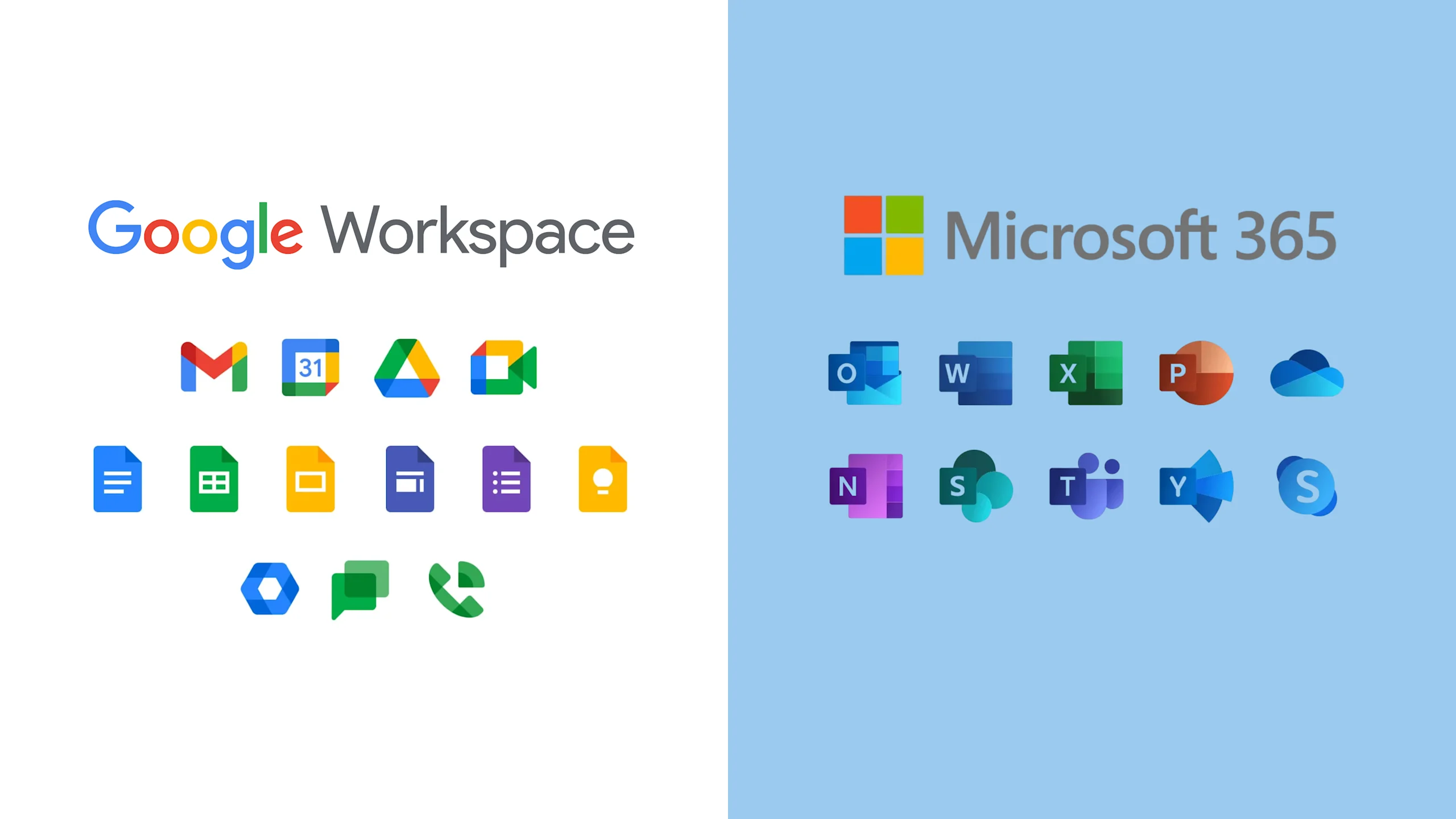
This is where rubber meets road. Gmail replaces Outlook, Drive replaces OneDrive and SharePoint, Meet replaces Teams (sort of), and Sheets replaces Excel (with some caveats). But it's never a perfect one-to-one swap. Some features won't translate cleanly.
Advanced Excel users will complain about Sheets lacking certain functions. SharePoint power users will need to rethink their entire information architecture for Drive and Sites. So, document these gaps early, communicate them honestly, and have a plan for the edge cases. Maybe some users keep Excel for specific tasks. Maybe you supplement with third-party tools. Just don't promise feature parity when it doesn't exist.
Step 3: Choose your migration approach
You've got options here:
- Big bang (everyone switches at once): the fastest but the riskiest.
- Phased rollout (department by department): safer, but drags out the pain.
- Hybrid coexistence (run both simultaneously for a while): gives you breathing room but costs more and confuses users.
For most organizations, phasing makes the most sense. Start with a pilot group of tech-savvy users who can handle rough edges and provide feedback. Then, roll out to departments that are least dependent on Microsoft-specific features. Save your power users and complex workflows for last, when you've worked out the existing issues.
Step 4: Set up Google Workspace properly
Before migrating a single email, configure Google Workspace correctly.
- Set up your domain, configure DNS records for Gmail, create organizational units that mirror your company structure, and establish admin roles.
- Configure security settings, two-factor authentication, and data loss prevention policies.
- Set up groups for departments, projects, and distribution lists.
This foundation work is boring but critical. Do it wrong, and you'll be fixing permissions issues for months. The Google Admin console is your new home, so get comfortable with it.
Step 5: Migrate email first
Email is the lifeblood of most organizations, so start there. Google's migration tools can pull emails, contacts, and calendars directly from Exchange. You can use Google Workspace Migrate for calendar and Drive migration, or third-party tools, like BitTitan or SkyKick, for more complex scenarios.
Schedule migrations during off-hours, communicate clearly with users about what to expect, and have a support plan ready for the inevitable "where did my emails go?" panic. Test with a small group first, then scale up. Don't try to migrate 500 mailboxes at once unless you enjoy chaos.
Step 6: Move files systematically
OneDrive and SharePoint migrations are trickier than email because of how people organize (or don't organize) their files. Use Google's migration tools or third-party services to move files in batches.
Start with personal OneDrive content, then tackle shared drives and SharePoint sites. Permissions usually transfer, but verify everything. Some file types might not open properly in Google's editors, especially complex Excel spreadsheets with macros or heavily formatted Word documents. Communicate this early and provide workarounds, like keeping certain files in their original formats.
Step 7: Train your users (seriously)
This is where most migrations fail. You can't just dump people into Google Workspace and expect them to figure it out. They won't. They'll get frustrated, productivity will tank, and they'll blame you.
Schedule training sessions for different user groups. Power users need advanced training on Sheets, Drive organization, and collaboration features. Regular users need basics on Gmail, Calendar, and Drive. Create quick reference guides, record video tutorials, and set up a dedicated help channel. Make training mandatory, not optional. Yes, people will complain. They'll complain more if you don't train them.
Step 8: Handle the Microsoft diehards
There will always be users who refuse to let go of Microsoft tools, especially Excel. Don't fight them on everything. Google Workspace supports editing Office files directly in Drive, though with some limitations. For users who absolutely need desktop Office applications, they can continue using them while storing files in Drive. It's not ideal, but it's better than rebellion. Pick your battles. Save your energy for the migrations that actually matter.
Step 9: Migrate communication and collaboration
If you're using Teams, migrating to Google Chat and Meet requires a mindset shift. They're different tools with different philosophies. Chat is simpler and more lightweight. Meet focuses purely on video conferencing. You might need Slack or another tool to fill gaps. Migrate chat history if possible, but sometimes a fresh start is okay. Set up Spaces for team collaboration, configure Meet settings for your organization, and establish new communication norms. This is cultural change as much as technical.
Step 10: Decommission Microsoft 365 carefully
Don't cancel your Microsoft licenses the day after migration. Run parallel for at least a month, maybe longer. Keep Exchange online in case someone needs to access old emails. Maintain OneDrive access for stragglers still grabbing files. Archive SharePoint sites you can't migrate. Only after you're absolutely certain everything critical has moved should you start decommissioning services. Even then, keep admin access for a while. You never know when someone will remember that one critical document they forgot to mention.
The reality check nobody wants to hear
Look, Google Workspace won't solve all your problems. If your organization was disorganized in Microsoft 365, you'll be disorganized in Google Workspace too. The tools are different, not magic. Some things will be better: smoother collaboration, cleaner interfaces, better integration with Google services. Some things will be worse: less powerful spreadsheet features, simpler presentation tools, fewer enterprise-specific features. That's the trade-off. What matters is whether the benefits outweigh the drawbacks for your specific organization.
Conclusion
The bigger picture
Can Google Workspace replace Microsoft 365? Yes, absolutely. Will it be easy? No. Will everyone be happy? Definitely not. But here's what I've learned from helping organizations through this migration: success isn't about perfectly replicating the Microsoft experience in Google's ecosystem. It's about setting realistic expectations, planning thoroughly, training extensively, and supporting your users through the transition. The organizations that succeed are the ones that treat this as a change management project, not just a technical migration. Get that right, and the technical stuff is just logistics.
If you want peace of mind, you know where to find us!

Want to know more?
Reiner Telasman
IT Business Consultant
3 min read
Incentro x Lark: Killing the noise of fragmented workflows in Indonesia

7 min read
Why construction and product leaders in Indonesia need AI-powered project management now

1 min read
Manage Projects Smarter: AI for Construction & Product Leaders

1 min read
Roundtable: Managing property projects and sales collaboration